In OS Services Booking, Services represent one of the two core components—alongside employees—that form the foundation of the booking system. The available timeslots for customers are generated through the combination of these two elements.
Services are the different offerings that users can book through OS Services Booking, such as care sessions, consultations, sports activities, and more. The platform supports two types of services to cater to various business needs:
1. Normal Timeslots Services
Normal timeslots services are designed for offerings where the system automatically generates timeslots based on the service's duration and availability. This type is ideal for one-on-one services such as personal care, consultations, or private training sessions. It streamlines scheduling by allowing customers to book individual appointments that fit both the service provider's and employee's working hours.
2. Custom Timeslots Services
Custom timeslots services allow administrators to manually create timeslots, each of which can have multiple seats available. This means several customers can book the same time slot, making it perfect for group activities like fitness classes, workshops, seminars, or any event where multiple participants can join at once. This flexibility enables businesses to efficiently manage group bookings and maximize attendance for each session.
By offering both normal and custom timeslot services, OS Services Booking provides a comprehensive solution for businesses to manage a wide range of appointment and booking scenarios.
Starting from version 7.0, each service can be associated with a Resource Type. This allows services to display appropriate labels on the frontend. For example:
- A tennis booking service can be associated with a "Courts" Resource Type, so customers see "Select a Court" instead of "Select an Employee"
- A massage service can be associated with a "Therapists" Resource Type for proper labeling
- An equipment rental service can be associated with an "Equipment" Resource Type
This feature provides better user experience by using contextually appropriate language throughout the booking process.
The Services Management page is your central hub for viewing and controlling all the services your business offers. Everything you need to manage your service catalog is available here, clearly organized and easy to use.
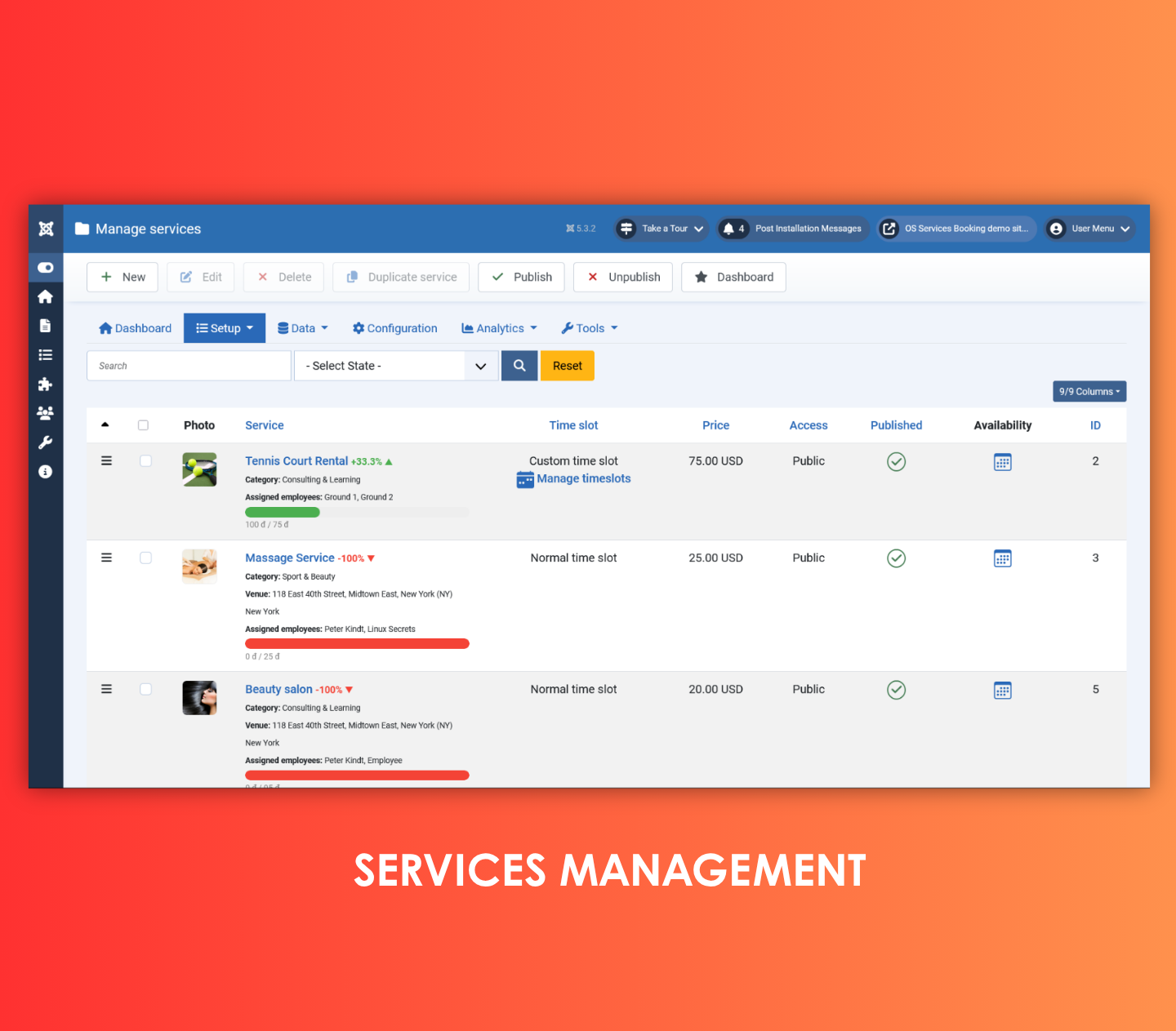
Search and filter your services quickly by name or by publish status, so you can find what you need without scrolling through a long list.
Key information at a glance — each row in the list shows:
- Service photo — a thumbnail image so you can identify services visually.
- Service name — click the name to open and edit the service. Below the name, you will also see the category, the venue(s) assigned, and the staff members who provide this service.
- Revenue trend — a colored progress bar and percentage figure show how this service's revenue this month compares to last month. A green indicator means growth; red means a decline. This gives you an instant performance snapshot without opening any reports.
- Time slot type — whether the service uses Normal or Custom timeslots. For Custom timeslot services, a quick link to manage the timeslots for that service is shown here.
- Price — the base price of one timeslot for the service.
- Access level — which Joomla user groups can see and book this service on the front-end.
- Published status — whether the service is currently visible to customers. Toggle this directly from the list.
- Availability (calendar icon) — click this icon to manage the unavailable times for the service. This is where you block out dates or time ranges when the service cannot be booked.
Toolbar actions give you full control:
| Action | Description |
|---|---|
| New | Create a new service |
| Edit | Open the selected service for editing |
| Delete | Permanently remove selected services |
| Duplicate | Copy an existing service as a starting point for a new one |
| Publish / Unpublish | Show or hide services from customers |
You can also drag and drop rows to reorder services, which controls the display order on your booking pages.
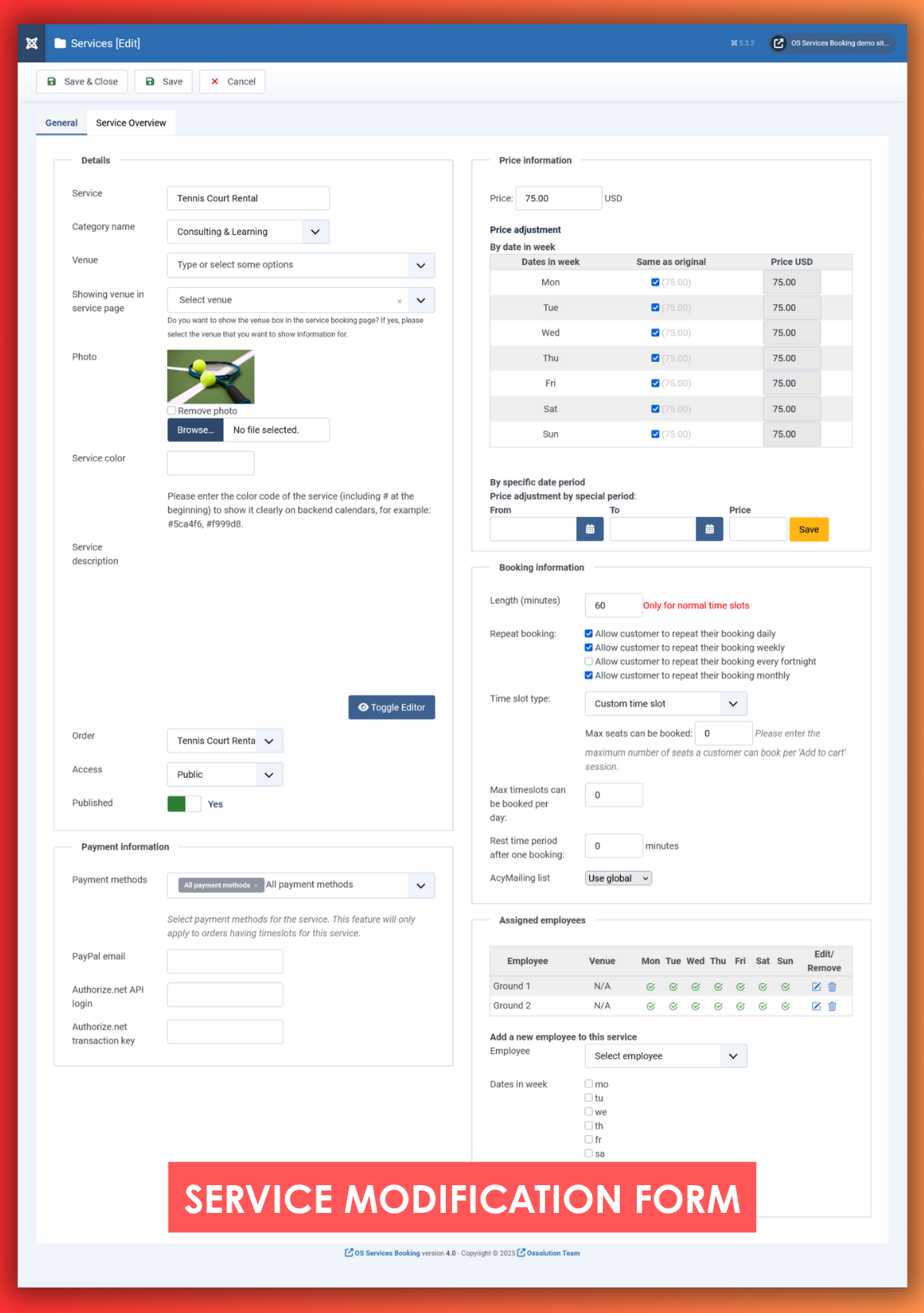
Whether you are adding a brand-new service or updating an existing one, the service form gives you complete control over every detail of how a service is offered and priced.
To create a new service, click New in the toolbar on the Services list page.
To edit an existing service, click its name in the list.
| Property | Description |
|---|---|
| Service Name | The name of the service as it will appear to customers on the booking page. |
| Category | The category this service belongs to. Categories help organize your services and can be used as filters on the front-end. |
| Venue | Select one or more venues where this service is available. This is an optional field. |
| Showing venue in service page | When a service is available at more than one venue, choose which venue is displayed by default on the booking page. |
| Price | The base price of one timeslot for this service. OS Services Booking also supports flexible Price Adjustment options: 1. Adjust by day of the week — set a different price for specific days (for example, higher prices on weekends). 2. Price by date range — apply a special price during a specific period (for example, a peak-season rate). Priority order: Date range price > Day-of-week price > Base price. |
| Early Bird Discount | Offer a discount (as a percentage or a fixed amount) when customers book at least X days in advance. |
| Discount by number of slots added | For Custom timeslot services, grant a discount when a customer adds more than X timeslots to their cart in a single session. |
| Length (minutes) | The duration of one appointment. This applies to Normal timeslot services only. |
| Time Slot Type | Choose how timeslots are generated for this service: - Normal timeslot: The system automatically creates appointment slots based on the service length and the step interval set in Configuration. - Custom timeslot: You manually define each timeslot, set a capacity (number of seats), and choose which days of the week it is active. Ideal for classes, workshops, or group sessions. |
| Step in Minutes | For Normal timeslot services, this is the gap between the start times of two consecutive slots. You can inherit this value from the global Configuration, set it equal to the service length, or choose a custom number of minutes. |
| Max timeslots per day | Limit how many timeslots a single customer can book on any given day. Leave empty or set to zero for no limit. |
| Rest time after booking | Enter the number of minutes the resource (employee or venue) needs to rest between bookings. This buffer prevents back-to-back appointments. |
| Linked Services | Link this service to other services. When a linked service is unavailable, this service will also be blocked from booking. |
| Access Level | Select the Joomla user group that is allowed to view and book this service on the front-end. |
| AcyMailing List | Requires AcyMailing to be installed and enabled in Configuration. Choose which mailing list customers who book this service are added to. Options: 1. Use global setting: inherit the list from the Configuration page. 2. None: do not add customers to any list for this service. 3. Specific list: override the global setting with a list you choose here. |
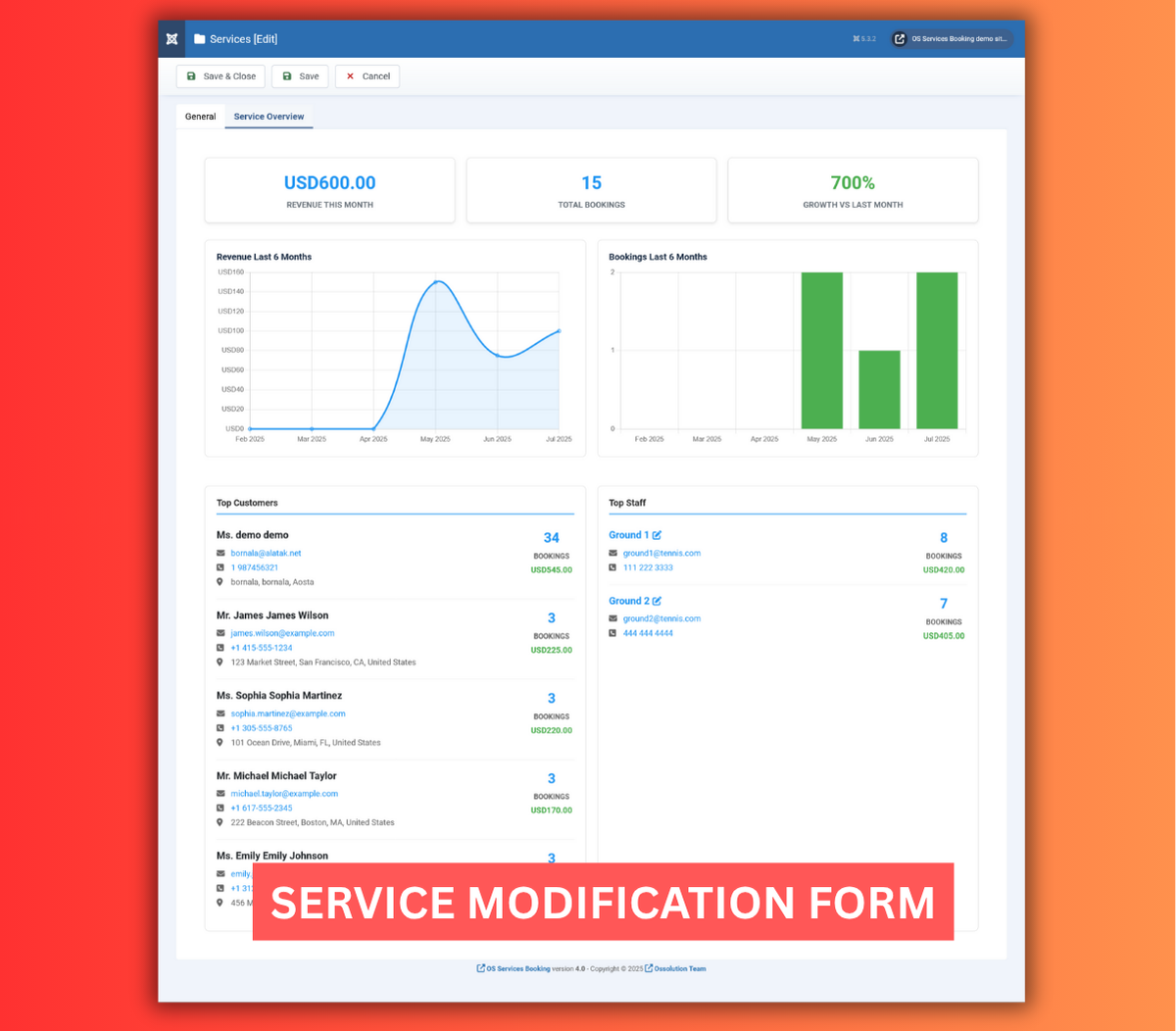
When you open an existing service for editing, OS Services Booking automatically displays a statistics dashboard directly on the edit page. This gives you a live performance overview for that service without having to leave the edit screen.
The dashboard includes:
Summary cards
- Revenue this month — total income from confirmed bookings for the current calendar month.
- Total bookings — the all-time number of confirmed bookings for this service.
- Growth vs last month — the percentage change in revenue compared to the previous month. A positive number (shown in green) means the service is growing; a negative number (shown in red) indicates a decline.
Charts
- Revenue – last 6 months — a bar chart showing monthly revenue for the past six months, so you can spot seasonal trends at a glance.
- Bookings – last 6 months — a bar chart showing the number of bookings per month over the same period.
Top lists
- Top Customers — the five customers who have booked this service most often, with their contact details (email, phone, address) shown for quick follow-up.
- Top Staff — the five employees who have handled the most bookings for this service, along with their total booking count and revenue generated.
- Top Venues — the five venues where this service is booked most frequently, with booking count and revenue figures.
These statistics are calculated in real time based on approved and completed orders, so they always reflect your latest data.
For services set to Custom timeslot type, you control every available time slot manually. This is perfect for fixed-schedule offerings such as yoga classes, training sessions, or any service where the time and capacity are defined in advance.
To access the custom timeslots for a service, go to the Services list and click the calendar icon (Manage Timeslots) in the Time Slot Type column for the relevant service.
You will be taken to the Custom Timeslots Management page for that service.
The list shows all timeslots defined for the service. Each timeslot displays its start and end time, the number of available seats, and which days of the week it is active.
| Action | Description |
|---|---|
| New | Add a new custom timeslot |
| Edit | Modify the selected timeslot |
| Delete | Remove selected timeslots |
| Batch Import | Import multiple timeslots at once from a CSV file |
Click New or select a timeslot and click Edit to open the timeslot form.
| Property | Description |
|---|---|
| Start Time | The time when this slot begins (e.g., 09:00). |
| End Time | The time when this slot ends (e.g., 10:00). |
| Number of Seats | How many customers can book this slot at the same time. Set this to 1 for a private session, or higher for a group class. |
| Activate On | Select the days of the week on which this timeslot is available (e.g., Monday, Wednesday, Friday only). |
If you need to create many timeslots at once, use the Batch Import feature instead of adding them one by one.
In the Custom Timeslots Management page, click Batch Import in the toolbar.
A download link for a sample CSV file is provided on the import page. Fill in the CSV with your timeslot data and upload it. You can also use this feature to update existing timeslots — simply adjust the seat count or active days in the CSV and re-import.
Sometimes a service cannot be offered on certain dates or during certain hours — for example, during holidays, staff leave, venue closures, or maintenance periods. The Unavailable Time feature lets you block out those periods so customers cannot book them.
To open the Unavailable Time management page for a service, go to the Services list and click the calendar icon in the Availability column for the service you want to manage.
The page is split into two panels:
Left panel — existing unavailable times
This panel lists all the unavailable periods already defined for the service. For each entry you can see:
- The date when the service is unavailable.
- The time range (or "Full Day" if the entire day is blocked).
- A reason (optional note, such as "Public holiday" or "Staff training").
- Edit and Remove buttons for each entry.
You can filter the list by a date range (From / To) to find specific entries quickly, and sort the list by date.
Right panel — add unavailable time
Use this panel to create new unavailable periods. Three tabs are available:
1. Add Single Unavailable Time
Block a specific date (or part of a day) for one service.
| Field | Description |
|---|---|
| Reason | An optional note explaining why the service is unavailable. |
| Date | The date to block. |
| Full Day | Check this to block the entire day. Leave unchecked to set a specific time range. |
| Start Time | The start of the unavailable period (format: hh:mm:ss). Only used when Full Day is unchecked. |
| End Time | The end of the unavailable period (format: hh:mm:ss). Only used when Full Day is unchecked. |
2. Add Multiple Unavailable Dates
Block a range of dates in one action — useful for multi-day closures such as holiday breaks.
| Field | Description |
|---|---|
| Reason | An optional note for all dates in the range. |
| Date From | Start of the date range. |
| Date To | End of the date range. |
| Days of the Week | Choose which days within the range to block (for example, block only weekdays, or only weekends). |
| Full Day | Block the entire day, or enter specific start and end times. |
3. Edit Unavailable Time
This tab appears automatically when you click the Edit icon next to an existing entry. Adjust any of the fields and save your changes.
Once unavailable times are saved, the system will automatically prevent customers from booking the service during those blocked periods.