Overview
In OS Services Booking version 7.0 and later, the traditional "Employees" feature has been replaced with a more flexible Resources system. Resources represent one of the two main components that power the booking system, alongside Services.
What are Resources?
Resources are the entities that deliver services to your customers. They can represent:
- Staff members — massage therapists, consultants, teachers, doctors, stylists
- Facilities — meeting rooms, conference halls, tennis courts, pickleball courts, golf courses
- Equipment — vehicles, tools, machinery
- Any bookable entity in your organization
This flexibility allows you to adapt OS Services Booking to fit the unique needs of your business or organization, from service-based businesses to facilities management.
Resource Types
Starting from version 7.0, OS Services Booking introduces Resource Types management, allowing you to categorize your resources properly. Resource Types help organize and label your resources correctly across both backend and frontend interfaces.
Benefits of Resource Types:
- Organized Management — Categorize resources by type (Staffs, Employees, Courts, Equipment, Vehicles, etc.)
- Proper Labeling — Each service can select its appropriate Resource Type to display correct labels on the frontend
- Better User Experience — Customers see contextually appropriate labels (e.g., "Select a Court" instead of "Select an Employee" for tennis bookings)
- Future Extensibility — Resource Types provide a foundation for advanced features in future versions
To manage Resource Types, navigate to Setup > Manage Resource Types in the admin menu. Here you can create, edit, and organize different types of resources with custom backend and frontend labels.
Multiple Venues Support
When you have multiple venues set up in OS Services Booking, assigning resources to services requires you to select a venue, as each resource can only work at a specific location. This ensures accurate and location-specific scheduling, preventing conflicts and double bookings.
Multiple Services Support
The system allows you to configure resources to handle multiple services simultaneously, maximizing resource utilization and offering more options to your customers.
By offering comprehensive resource management with Resource Types, OS Services Booking provides a powerful and adaptable solution for a wide range of booking scenarios.
Resources List
To access the Resources management section, go to OS Services Booking → Resources (the menu may still show "Employees" in older installations).
Dashboard Statistics
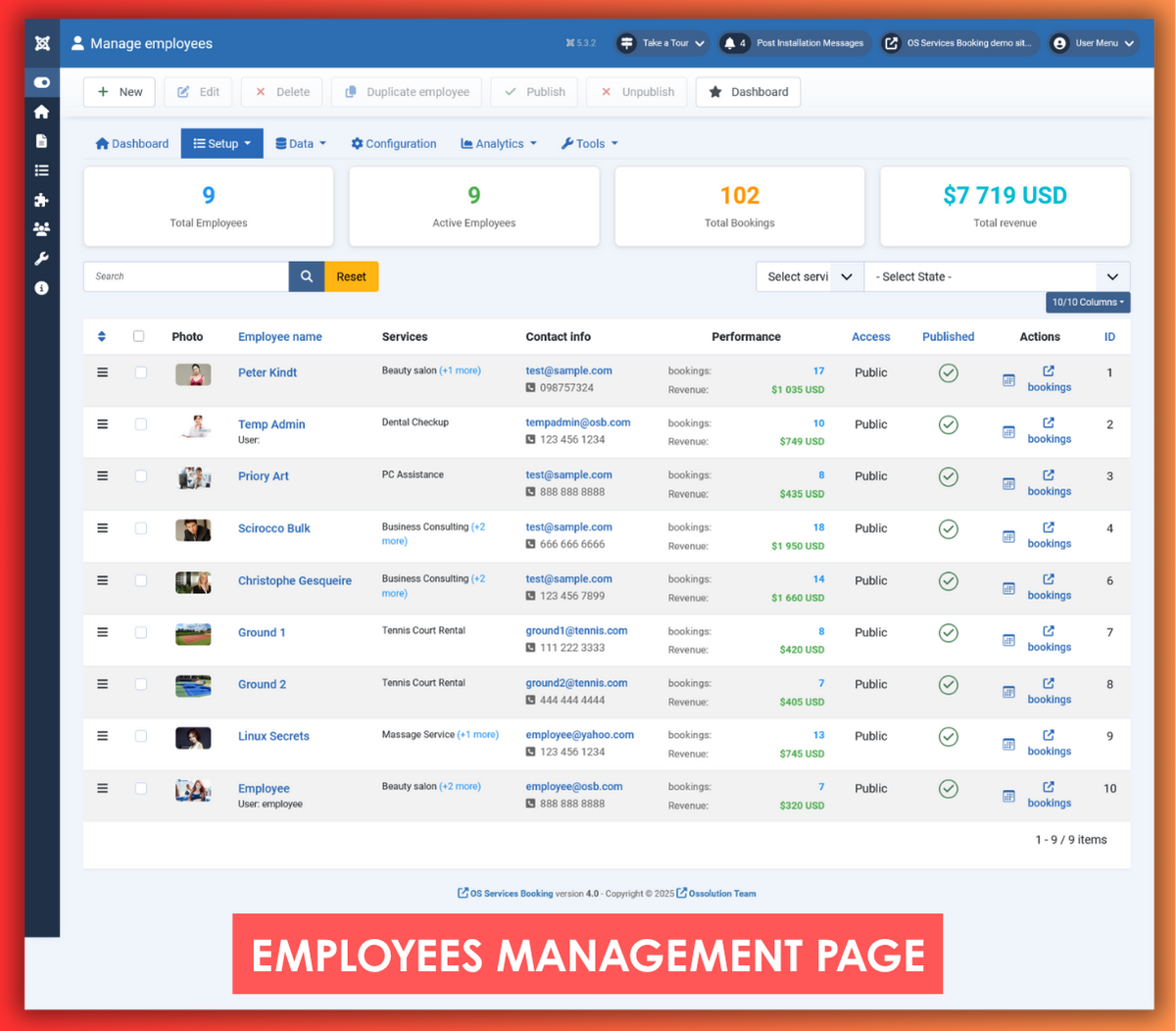
At the top of the Resources list page, four summary cards give you an at-a-glance overview of your resources and their performance:
| Card | Description |
|---|---|
| Total Resources | The total number of resources defined in the system. |
| Active Resources | The number of resources that are currently published and available for booking. |
| Total Bookings | The cumulative number of bookings handled across all resources. |
| Total Revenue | The total revenue generated across all resources. |
Search and Filters
You can narrow down the resource list using:
- Search box — search by resource name or other resource details.
- Filter by service — show only resources that are assigned to a specific service.
- Filter by status — show only published, unpublished, or all resources.
Click the Reset button to clear all filters and show the full list.
Column Descriptions
Each row in the Resources list displays the following information:
| Column | Description |
|---|---|
| Ordering | Drag and drop rows to reorder resources. This controls the display order on booking pages. |
| Resource Type | The category or type of this resource (e.g., Staff, Court, Equipment). Click the column header to sort. |
| Photo | A thumbnail image of the resource for visual identification. |
| Resource Name | The resource's name. Click to open and edit the resource. Below the name, the linked Joomla user account (if any) is shown. |
| Services | The services assigned to this resource, with a quick link to manage the resource's working schedule for each service. |
| Contact Info | The resource's email address and phone number (if provided), displayed for quick reference. |
| Performance | A live summary of this resource's total confirmed bookings and revenue generated. |
| Access | The Joomla access level controlling which user groups can see this resource on the front-end. |
| Published | Whether the resource is currently visible to customers. Toggle this directly from the list. |
| Actions | Quick action links for the resource: Availability Calendar (calendar icon) and View Bookings link. |
Toolbar Actions
| Action | Description |
|---|---|
| New | Create a new resource. |
| Edit | Open the selected resource for editing. |
| Delete | Permanently remove selected resources. |
| Duplicate | Copy an existing resource as a starting point for a new one. |
| Publish / Unpublish | Show or hide resources from customers. |
Assigning Resources to Services
To configure the working schedule of a resource for a specific service, click on the setup icon in the "Services" column next to the service name.
On the Assign resource to specific service page, you can:
- Select the working days (days of the week) when this resource is available for the selected service
- Configure break times when the resource is unavailable during working hours
Creating and Editing a Resource
To create a new resource, click New in the toolbar on the Resources list page.
To edit an existing resource, click its name in the list.
Resource Statistics (Edit Mode)
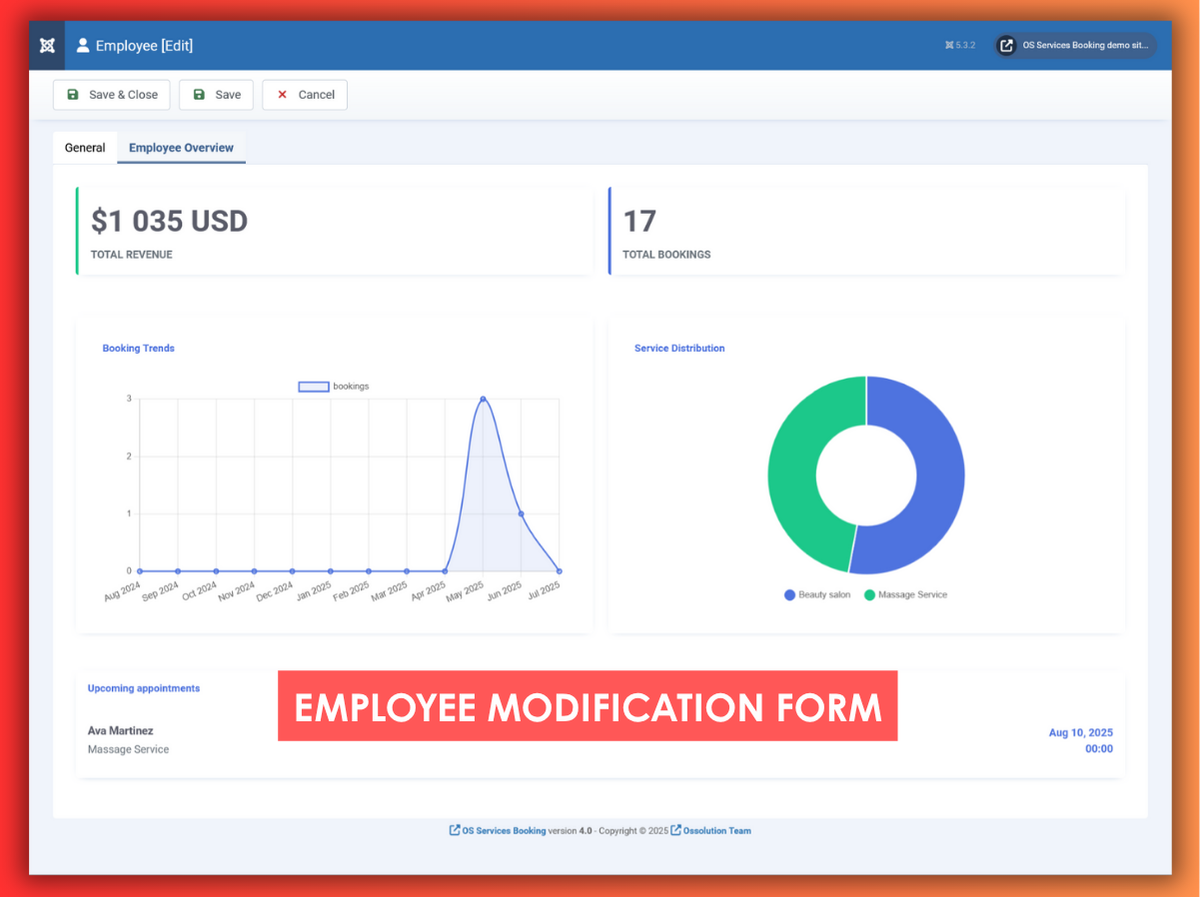
When you open an existing resource for editing, OS Services Booking automatically displays a statistics overview for that resource. This gives you a live performance snapshot without leaving the edit screen.
The overview includes:
Summary cards
- Total Revenue — total income from confirmed bookings for this resource.
- Total Bookings — the all-time number of confirmed bookings for this resource.
Charts
- Booking Trends — a line chart showing the number of bookings per month over recent months, allowing you to spot trends at a glance.
- Service Distribution — a doughnut chart showing how bookings for this resource are distributed across the services it handles.
Upcoming Appointments
- A list of the next scheduled appointments for this resource, showing the customer name, service, date, and time.
Resource Properties
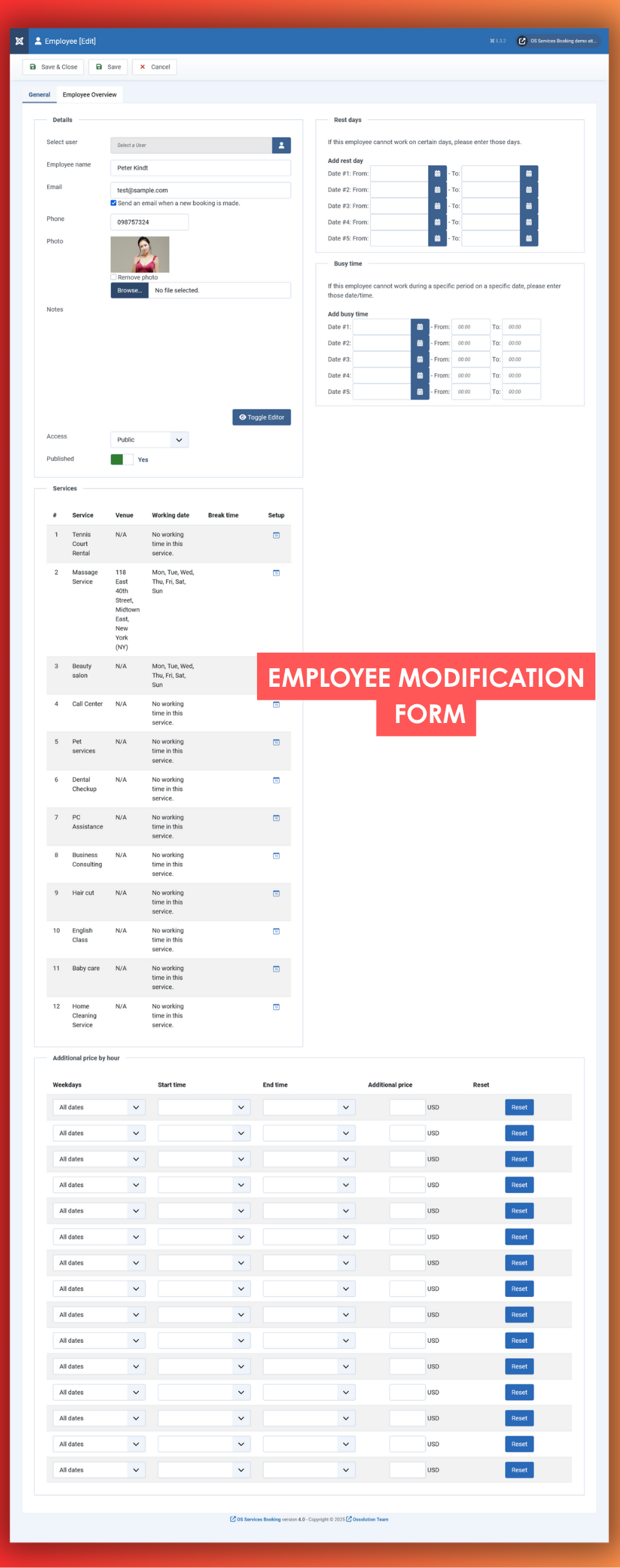
When creating or editing a resource, you can configure the following properties:
| Property | Description |
|---|---|
| Select user | You can select a Joomla user account to represent this resource. This user can manage the resource's work list on the front-end of OS Services Booking. Each Joomla user account can only represent one resource. |
| Resource Type | Select the Resource Type for this resource (e.g., Staff, Court, Equipment). This determines how the resource is labeled and categorized throughout the system. Resource Types are managed under Setup > Manage Resource Types. |
| Name | A resource must have a name. Examples: 'Meeting Room A', 'Dr. Allan Harper', 'Tennis Court 1'. |
| The email address of the resource (typically used for staff members). This is displayed in the Contact Info column on the Resources list page. | |
| Send an email when a new booking is made | When enabled, the resource will receive an email notification each time a new booking is made for them. This is useful for staff members who need to be informed of new appointments immediately. |
| Contact phone | The phone number of the resource. This value will be displayed on the front-end of OS Services Booking and in the Contact Info column on the Resources list page. |
| Photo | Upload a photo for this resource. The photo is displayed in the Resources list and can also be shown on the front-end booking pages to help customers recognize and select the right resource. |
| Notes | The description field can be used to store additional information about the resource beyond just the name. |
| Access Level | Select the Joomla user group that is allowed to view and book this resource on the front-end. Use this to restrict premium resources to specific membership levels or registered users only. |
| Published | Controls whether this resource is visible to customers on the front-end. Unpublishing a resource hides it from all booking pages without deleting it. |
| Google Client ID | The Google Client ID is a unique identifier used in Google services such as Google Analytics, Google Ads, and OAuth 2.0 authentication systems. For OAuth 2.0, a Google Client ID is associated with your application and is used when your application needs to interact with Google APIs on behalf of the user. It identifies your app during the authentication and authorization process, ensuring only authorized apps can access user data. |
| App Name | The name of your Google application registered in the Google Cloud Console. This is used when setting up the Google Calendar integration for this resource. |
| App Email address | A Google Application Service Account is a special type of account used to authenticate and authorize your applications (such as scripts, servers, or backend systems) to access Google Cloud services and APIs. Unlike user accounts, which are tied to individual users, service accounts are used for server-to-server communication and automation tasks. Service accounts are commonly used when you want your application to interact with Google Cloud services without requiring direct user intervention. These accounts have a specific set of permissions granted via IAM (Identity and Access Management) roles, allowing fine-grained control over what the service account can access and modify. |
| P12 key | A Google P12 Key refers to a private key file used for authentication when interacting with Google APIs, particularly with service accounts. The P12 key is one of the older formats for service account authentication (JSON keys are now more widely used). |
| GCalendar ID | Only required if you are using a calendar other than the default for this login. This is obtained from the Google Calendar 'Calendar Settings' screen, in the Calendar Address section. |
| Rest days | Enter the dates when the resource will not be available for appointment bookings. |
| Busy time | You can set up busy times for resources on specific dates. When you integrate OS Services Booking with Google Calendar, the component will retrieve events from Google Calendar and automatically create busy times based on that information. |
| Services |
On the front-end of OS Services Booking, customers first select a service and then select a resource for that service. This establishes a close relationship between resources and services. In the resource modification page, you will see a list of services in your OS Services Booking system. 1. Service To assign a resource to a service, check the checkbox next to the service name. 2. Venue For each selected service, you can assign the resource to a specific venue using the dropdown list beside the service name. The venues in that dropdown are those related to the current service (see the Venue documentation for more details). If there are no options in the venue dropdown, it simply means the service hasn't been assigned to any venues yet. Remember, venue assignment is optional. 3. Additional cost Each service has a fixed price set in the service modification page. However, you can add an additional cost for specific resources performing the service. The total amount customers pay will be: Total Cost = Service Price + Resource's Additional Cost (if any)For example:
Even after configuring all the previous settings, if a resource is not appearing on the service page on the front-end, check its availability settings. Make sure you have specified the days of the week when the resource is available for booking. Additionally, for each available day, you can define up to two break time periods when the resource will not be available for appointments. |
| Additional price by hour | Resources may have different costs during different time ranges on a working day. For example, overtime costs are typically higher than costs during regular office hours. You can set up additional costs for different time ranges throughout the working day. |
Availability Calendar
From the Resources management page, click on the Availability Calendar icon (calendar icon in the Actions column) to open a large monthly availability calendar for the resource. In this calendar, you can click on each day to toggle whether the resource is available or unavailable on that specific date.
Use this calendar to quickly manage exceptions to the resource's regular working schedule—for example, marking individual days as unavailable due to leave, public holidays, or one-off closures—without needing to edit the resource's full configuration.